How to Register and Activate SpyHunter
If you have downloaded SpyHunter, follow these instructions to register and activate your account.
If you have not yet purchased SpyHunter, you can register SpyHunter by opening SpyHunter and clicking on the "BUY!" button, which is located at the top of SpyHunter's "Home" screen. You will be redirected to our purchase page where you will be asked to enter your customer details along with a valid email address. After a successful payment, the system will send an email confirmation to the email address that you have provided during the purchase process. This "Account Activation" email will contain your account information and the details that you will need to activate SpyHunter.
Note: You only need to activate SpyHunter if the yellow "BUY!" icon (see screenshot) is visible at the top of the main SpyHunter window. If you do not see the "BUY!" icon, it means that your SpyHunter program has already been activated.
SpyHunter (Windows) Activation Instructions
There are several methods to activate SpyHunter, which are described below.
If SpyHunter (Free) is Already Installed on Your Computer
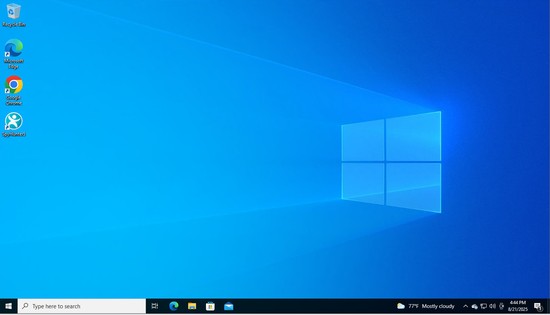
- If SpyHunter is not already open on your computer, double-click the SpyHunter icon on your Desktop.
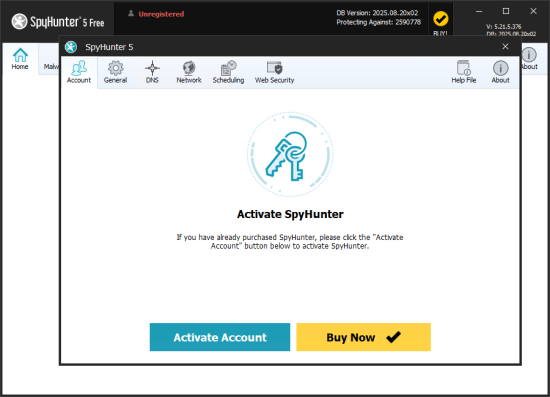
Depending on how you last used SpyHunter, the "Activate SpyHunter" window may already be visible. If the window is NOT visible, click "Settings" in the SpyHunter main window and then click the "Account" tab at the top of the "Settings" window. Then, click the "Activate Account" button to open the window.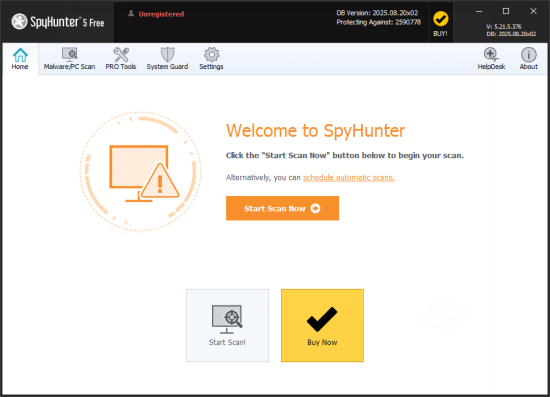
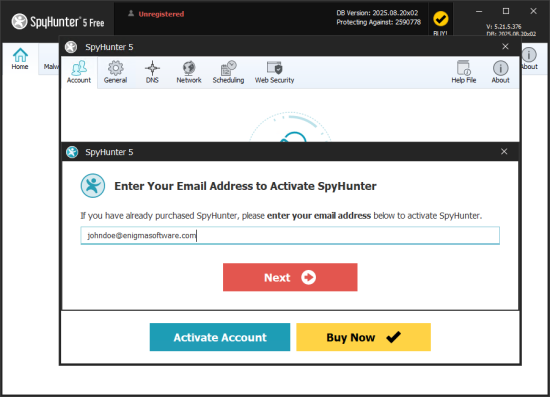
- Please enter the email address that you would like to use to activate SpyHunter into the field and click "Next." The field may be pre-filled with the email address you used to register the free version of SpyHunter. If you wish, you can change the email address.
- If you have not already purchased other EnigmaSoft products, you will need to create an account to activate. The next screen will prompt you to create a password. Fill out the fields and click the "Create Account" button.
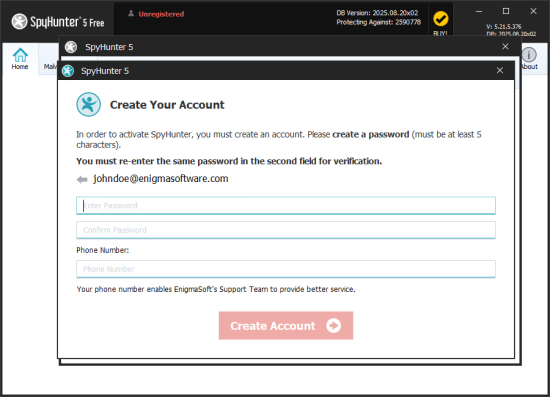
- Next, you will be prompted to enter your activation key, which was sent to you in your purchase confirmation email.


NOTE: It is very important that you enter the activation key exactly as shown in the purchase confirmation email (or that you copy and paste the activation key directly into SpyHunter from the confirmation email).
If the activation key is not entered correctly, SpyHunter will return an invalid activation error.
Enter the activation key and click the "Activate" button to complete the process.


If SpyHunter is Not Already Installed on Your Computer
- Please click the link below to download SpyHunter:
https://www.enigmasoftware.com/products/spyhunter/download/ - Launch the downloaded file and follow the installation wizard to install SpyHunter on your computer.
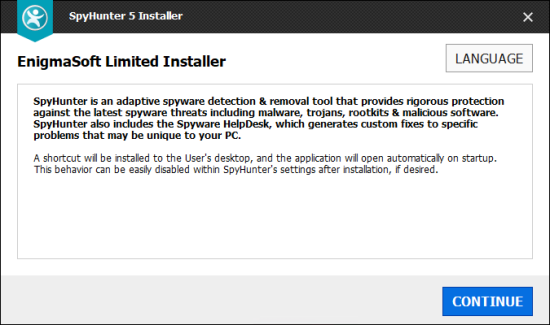
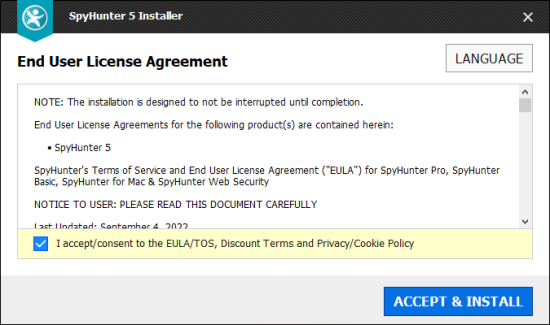
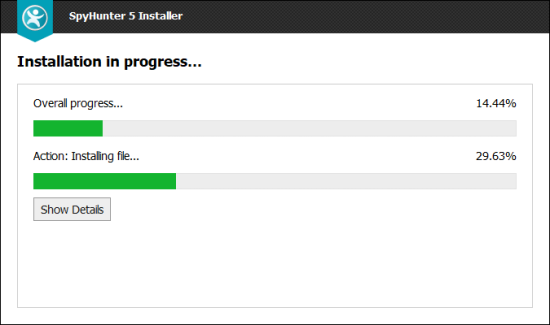
- SpyHunter should now launch. Click the "Settings" icon near the top of the SpyHunter main window and then click the "Account" tab at the top of the "Settings" window. Then, click the "Activate Account" button to open the window.
- Please enter the email address that you would like to use to activate SpyHunter into the field and click "Next." The field may be pre-filled with the email address you used to register the free version of SpyHunter. If you wish, you can change the email address.
- If you have not already purchased other EnigmaSoft products, you will need to create an account to activate. The next screen will prompt you to create a password. Fill out the fields and click the "Create Account" button.
- Next, you will be prompted to enter your activation key, which was sent to you in your purchase confirmation email.


NOTE: It is very important that you enter the activation key exactly as shown in the purchase confirmation email (or that you copy and paste the activation key directly into SpyHunter from the confirmation email).
If the activation key is not entered correctly, SpyHunter will return an invalid activation error.
Enter the activation key and click the "Activate" button to complete the process.
SpyHunter for Mac (MacOS) Instructions
There are several methods to activate SpyHunter for Mac which are described below.
If SpyHunter for Mac (Free) is Already Installed on Your Computer
- If SpyHunter for Mac is not already open on your computer, click the SpyHunter for Mac icon in your Mac's Dock (generally located at the bottom of your screen) or locate SpyHunter for Mac in your computer's "Applications" folder and double-click it to launch.
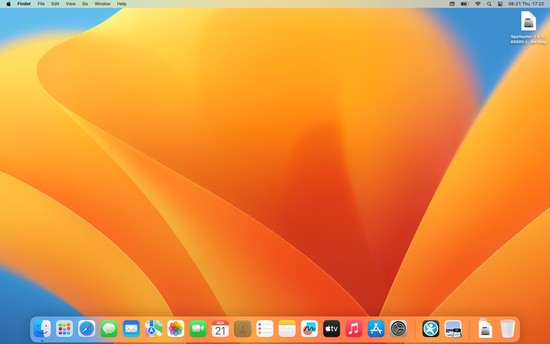
Depending on how you last used SpyHunter for Mac, the "Activate SpyHunter – Full Version" window may already be visible. If the window is NOT visible, click "Settings" in the menu at the top of the SpyHunter for Mac main window and then click the "Account" tab at the top of the window that appears. Then, click the "Activate Account" button.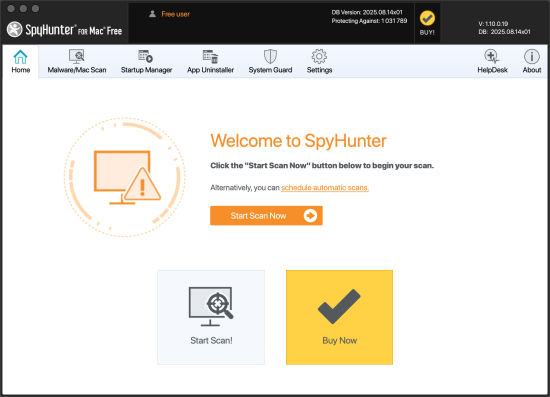
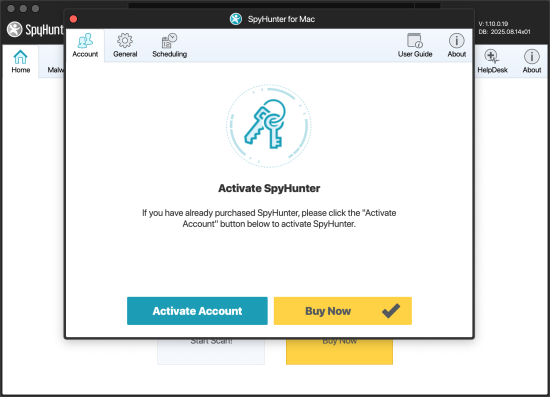
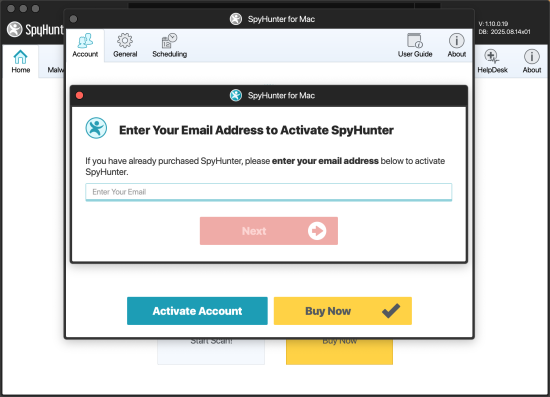
- Please enter the email address that you would like to use to activate SpyHunter for Mac into the field and click "Next." The field may be prefilled with the email address you used to register the free version of SpyHunter for Mac. If you wish, you can change the email address.
- If you have not already purchased other EnigmaSoft products, you will need to create an account to activate. The next screen will prompt you to create a password. Fill out the fields and click the "Create Account" button.
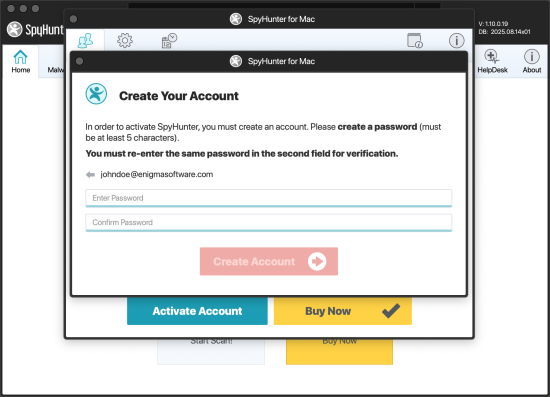
- Next, you will be prompted to enter your activation key, which was sent to you in your purchase confirmation email.


NOTE: It is very important that you enter the activation key exactly as shown in the purchase confirmation email (or that you copy and paste the activation key directly into SpyHunter for Mac from the confirmation email).
If the activation key is not entered correctly, SpyHunter for Mac will return an invalid activation error.
Enter the activation key and click the "Activate" button to complete the process.


If SpyHunter for Mac is NOT Installed on Your Computer
- Please click the link below to download SpyHunter for Mac:
https://www.enigmasoftware.com/products/spyhunter/download/ - Launch the downloaded file and follow the installation wizard to install SpyHunter for Mac on your computer.
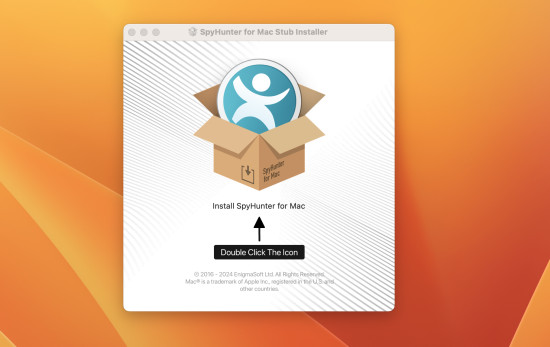
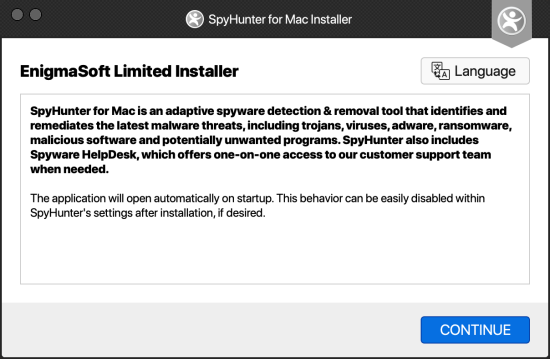
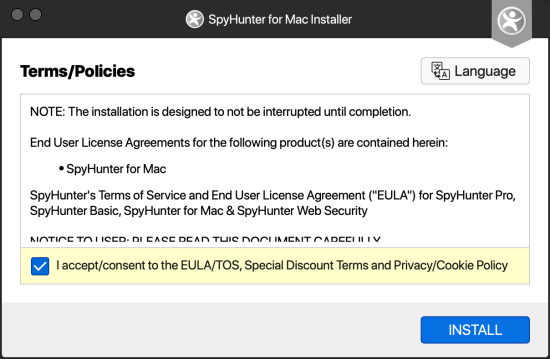
NOTE: To install SpyHunter for Mac, an operating system prompt from Apple/Mac will ask for your computer username and password (not your SpyHunter username and password) to install SpyHunter's helper tool. Enter your computer username and password and click the "Install Helper" button to continue with the SpyHunter for Mac installation.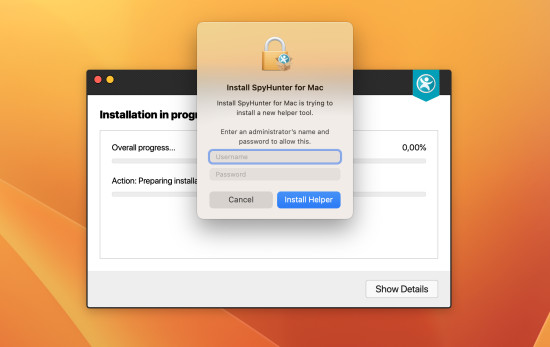
- SpyHunter for Mac should now launch. Click "Settings" in the menu at the top of the SpyHunter for Mac main window and then click the "Account" tab at the top of the window that appears. Then, click the "Activate Account" button.
- Please enter the email address that you would like to use to activate SpyHunter for Mac into the field and click "Next." The field may be prefilled with the email address you used to register the free version of SpyHunter for Mac. If you wish, you can change the email address.
- If you have not already purchased other EnigmaSoft products, you will need to create an account to activate. The next screen will prompt you to create a password. Fill out the fields and click the "Create Account" button.
- Next, you will be prompted to enter your activation key, which was sent to you in your purchase confirmation email.


NOTE: It is very important that you enter the activation key exactly as shown in the purchase confirmation email (or that you copy and paste the activation key directly into SpyHunter for Mac from the confirmation email).
If the activation key is not entered correctly, SpyHunter for Mac will return an invalid activation error.
Enter the activation key and click the "Activate" button to complete the process.
If you have purchased SpyHunter and followed these instructions but are still unable to activate SpyHunter, you can contact EnigmaSoft Support by email at support@enigmasoftware.com or by opening a support ticket on EnigmaSoft's MyAccount website.