Instructions to Download and Install SpyHunter
You're one step closer to safely and thoroughly removing spyware, trojans, rootkits and other malware from your PC. Please follow the instructions provided below to download and install SpyHunter successfully. For more details on SpyHunter and to understand our policies, please review our EULA, Privacy Policy and SpyHunter Risk Assessment Model.
- Download SpyHunter's Free Malware Remover.
-
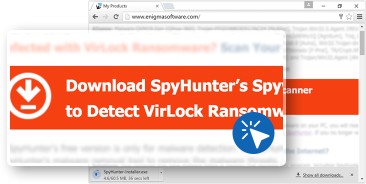
Once you've clicked on the download button, a file named "SpyHunter-Installer.exe" will start downloading to your computer.
-
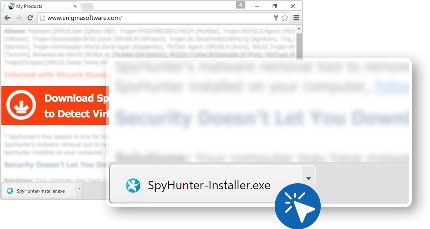
In the "Downloads" dialog box, click the "SpyHunter-Installer.exe" file to open it.
-
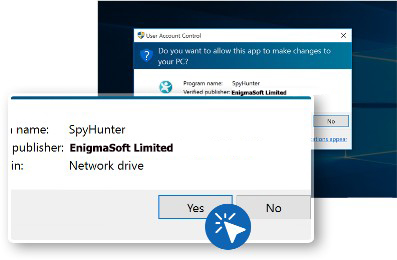
If the "User Account Control" dialog appears, choose "Yes".
-
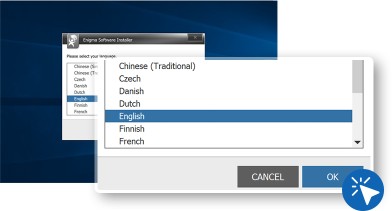
Choose your preferred language and click the "OK" button to move on to the next step.
-
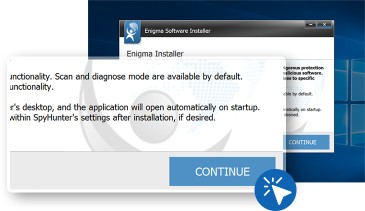
To proceed to the installation, click the "Continue" button.
-
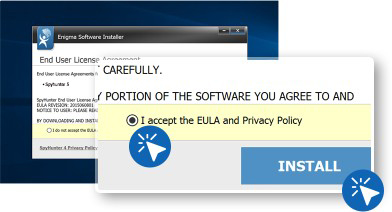
Review the “End User License Agreement” and “Privacy/Cookie Policy” and click the “Accept & Install” button to proceed. Click “Finish” to complete the installation.
- To open "SpyHunter", locate it on the Desktop and click on its icon; or go to the Windows "Start" menu, select "All apps" and click on the "SpyHunter" icon.
- Download SpyHunter's Free Malware Remover.
-
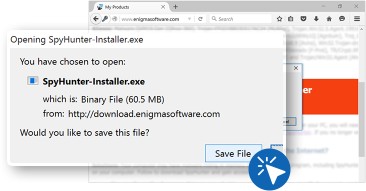
Once you've clicked on the download button, the "Opening SpyHunter-Installer.exe" window will appear on your computer.
-
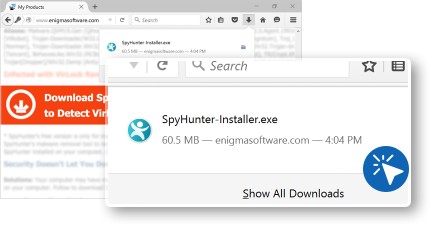
In the "Downloads" dialog box, click the "Opening SpyHunter-Installer.exe" file.
-
If the "User Account Control" dialog appears, choose "Yes".
-
Choose your preferred language and click the "OK" button to move on to the next step.
-
To proceed to the installation, click "Continue" button.
-
Review the “End User License Agreement” and “Privacy/Cookie Policy” and click the “Accept & Install” button to proceed. Click “Finish” to complete the installation.
- To open "SpyHunter", locate it on the Desktop and click on its icon; or go to the Windows "Start" menu, select "All apps" and click on the "SpyHunter" icon.
- Download SpyHunter's Free Malware Remover.
-
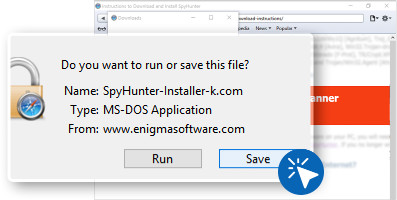
Once you've clicked on the download button, the "Do you want to run or save this file?" window will appear on your computer. You can refresh this page to restart the download if needed. On the "Do you want to run or save this file?" window, click on the "Save" button.
-
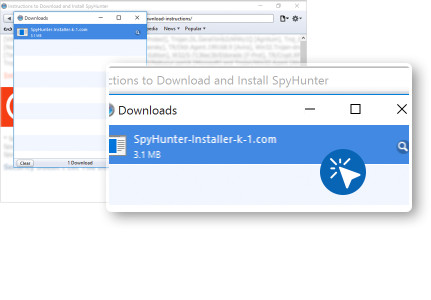
In the "Downloads" dialog box, click the "SpyHunter-Installer.exe" file to open it.
-
If the "User Account Control" dialog appears, choose "Yes".
-
Choose your preferred language and click the "OK" button to move on to the next step.
-
To proceed to the installation, click "Continue" button.
-
Review the “End User License Agreement” and “Privacy/Cookie Policy” and click the “Accept & Install” button to proceed. Click “Finish” to complete the installation.
- To open "SpyHunter", locate it on the Desktop and click on its icon; or go to the Windows "Start" menu, select "All apps" and click on the "SpyHunter" icon.
- Download SpyHunter's Free Malware Remover.
-
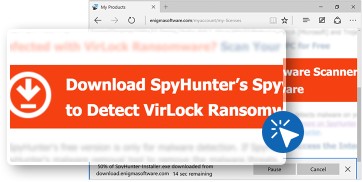
Once you've clicked on the download button, a notification bar will appear at the bottom of the browser.
-
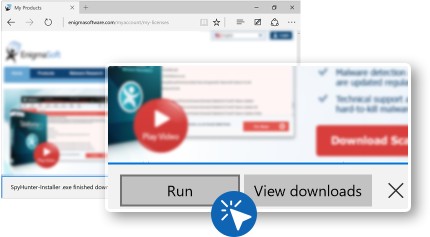
In the "Downloads" dialog box, click the "Run" button to open it.
-
If the "User Account Control" dialog appears, choose "Yes".
-
Choose your preferred language and click the "OK" button to move on to the next step.
-
To proceed to the installation, click "Continue" button.
-
Review the “End User License Agreement” and “Privacy/Cookie Policy” and click the “Accept & Install” button to proceed. Click “Finish” to complete the installation.
- To open "SpyHunter", locate it on the Desktop and click on its icon; or go to the Windows "Start" menu, select "All apps" and click on the "SpyHunter" icon.
- Download SpyHunter's Free Malware Remover.
-
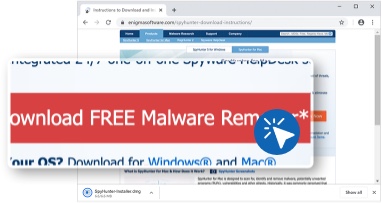
Once you've clicked the download button, the SpyHunter for Mac installer file will start downloading to your computer.
-
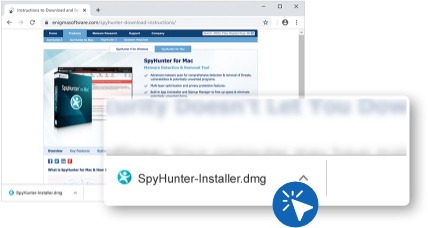
In the "Downloads" area at the bottom of the Chrome window, locate and click the SpyHunter installer file that was downloaded. By default, the file name should begin with "SpyHunter" and may have additional characters (i.e. SpyHunter-1.2-5-1-Installer.dmg).
-
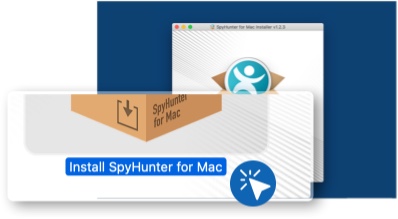
A "SpyHunter for Mac Installer" window will appear containing the "Install SpyHunter for Mac.app" icon. Double-click the icon.
-
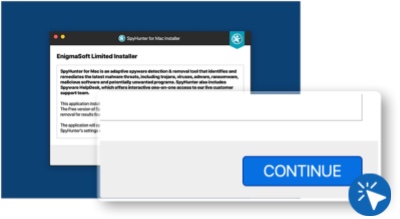
When the installation window opens, click "Continue."
-
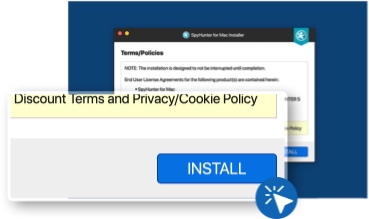
Review EnigmaSoft's Terms/Policies and, if you agree with them, click the "I accept/consent to the EULA/TOS, Discount Terms and Privacy/Cookie Policy" checkbox and then click "INSTALL" to proceed.
-
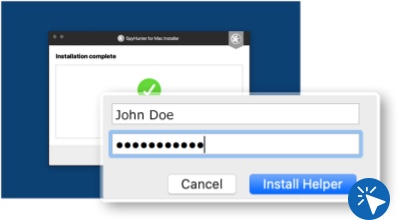
SpyHunter for Mac should now launch. You will be prompted by the Mac operating system to enter your computer username and password (NOT your SpyHunter username and password) to confirm the installation of the SpyHunter for Mac helper tool. Enter your username and password and click the "Install Helper" button to continue.
-
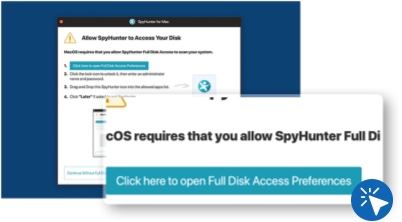
For MacOS version 10.14 (Mojave) or later: If you are prompted to "Allow SpyHunter to Access Your Disk," follow the instructions on screen and select "Click here to open Full Disk Access Preferences" and follow the instructions to continue. Note: SpyHunter for Mac requires Full Disk Access in order to effectively scan your system for malware and full functionality. If you do not explicitly grant SpyHunter for Mac Full Disk Access, malware may not be detected and/or remediated.
-
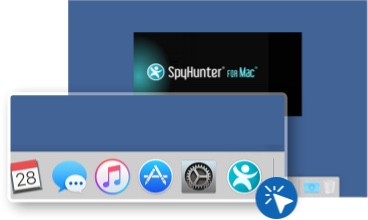
Once SpyHunter for Mac has been successfully installed, a quick scan will automatically be launched for your convenience. After installation, you may launch "SpyHunter" by clicking its icon in the dock at the bottom of the screen.
- Download SpyHunter's Free Malware Remover.
-
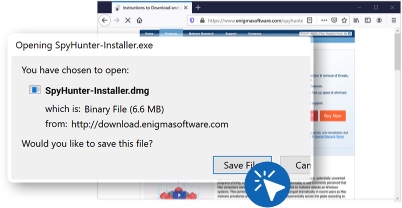
Once you've clicked on the download button, Firefox will display a download confirmation dialog box. Select the "Save File" radio button option and then click the "OK" button to start the download. The SpyHunter for Mac installer file will start downloading to your computer.
-
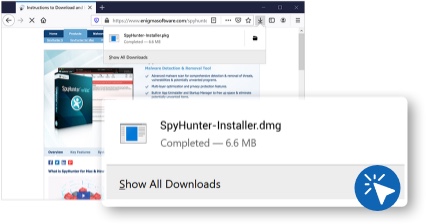
Once the download completes, click the "SpyHunter-Installer.pkg" file in the Firefox "Downloads" window to start the installation of SpyHunter for Mac.
-
A "SpyHunter for Mac Installer" window will appear containing the "Install SpyHunter for Mac.app" icon. Double-click the icon.
-
When the installation window opens, click "Continue."
-
Review EnigmaSoft's Terms/Policies and, if you agree with them, click the "I accept/consent to the EULA/TOS, Discount Terms and Privacy/Cookie Policy" checkbox and then click "INSTALL" to proceed.
-
SpyHunter for Mac should now launch. You will be prompted by the Mac operating system to enter your computer username and password (NOT your SpyHunter username and password) to confirm the installation of the SpyHunter for Mac helper tool. Enter your username and password and click the "Install Helper" button to continue.
-
For MacOS version 10.14 (Mojave) or later: If you are prompted to "Allow SpyHunter to Access Your Disk," follow the instructions on screen and select "Click here to open Full Disk Access Preferences" and follow the instructions to continue. Note: SpyHunter for Mac requires Full Disk Access in order to effectively scan your system for malware and full functionality. If you do not explicitly grant SpyHunter for Mac Full Disk Access, malware may not be detected and/or remediated.
-
Once SpyHunter for Mac has been successfully installed, a quick scan will automatically be launched for your convenience. After installation, you may launch "SpyHunter" by clicking its icon in the dock at the bottom of the screen.
- Download Free Malware Remover.
-
Once you've clicked the download button, your browser will prompt you to allow downloads from the website that you are downloading SpyHunter for Mac from. After you click "Allow", the SpyHunter for Mac installer file will start downloading to your computer.
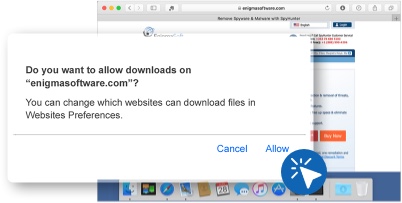
Once the installer download has completed, the "Downloads" icon on your dock will animate, indicating that the download is complete. -
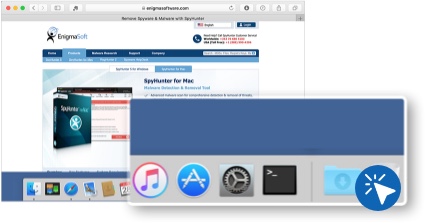
To start the SpyHunter for Mac installation, use Finder to locate "SpyHunter-Installer.pkg" in "Recents". You can also click the "Downloads" icon in the dock and then click "SpyHunter-Installer.pkg" in the stack that appears.
-
A "SpyHunter for Mac Installer" window will appear containing the "Install SpyHunter for Mac.app" icon. Double-click the icon.
-
When the installation window opens, click "Continue."
-
Review EnigmaSoft's Terms/Policies and, if you agree with them, click the "I accept/consent to the EULA/TOS, Discount Terms and Privacy/Cookie Policy" checkbox and then click "INSTALL" to proceed.
-
SpyHunter for Mac should now launch. You will be prompted by the Mac operating system to enter your computer username and password (NOT your SpyHunter username and password) to confirm the installation of the SpyHunter for Mac helper tool. Enter your username and password and click the "Install Helper" button to continue.
-
For MacOS version 10.14 (Mojave) or later: If you are prompted to "Allow SpyHunter to Access Your Disk," follow the instructions on screen and select "Click here to open Full Disk Access Preferences" and follow the instructions to continue. Note: SpyHunter for Mac requires Full Disk Access in order to effectively scan your system for malware and full functionality. If you do not explicitly grant SpyHunter for Mac Full Disk Access, malware may not be detected and/or remediated.
-
Once SpyHunter for Mac has been successfully installed, a quick scan will automatically be launched for your convenience. After installation, you may launch "SpyHunter" by clicking its icon in the dock at the bottom of the screen.